Overview
In this article, you will learn how to:
- Create a New Inspection Type; and
- Enable, disable or delete an inspection type
Inspections Configuration screenshot:
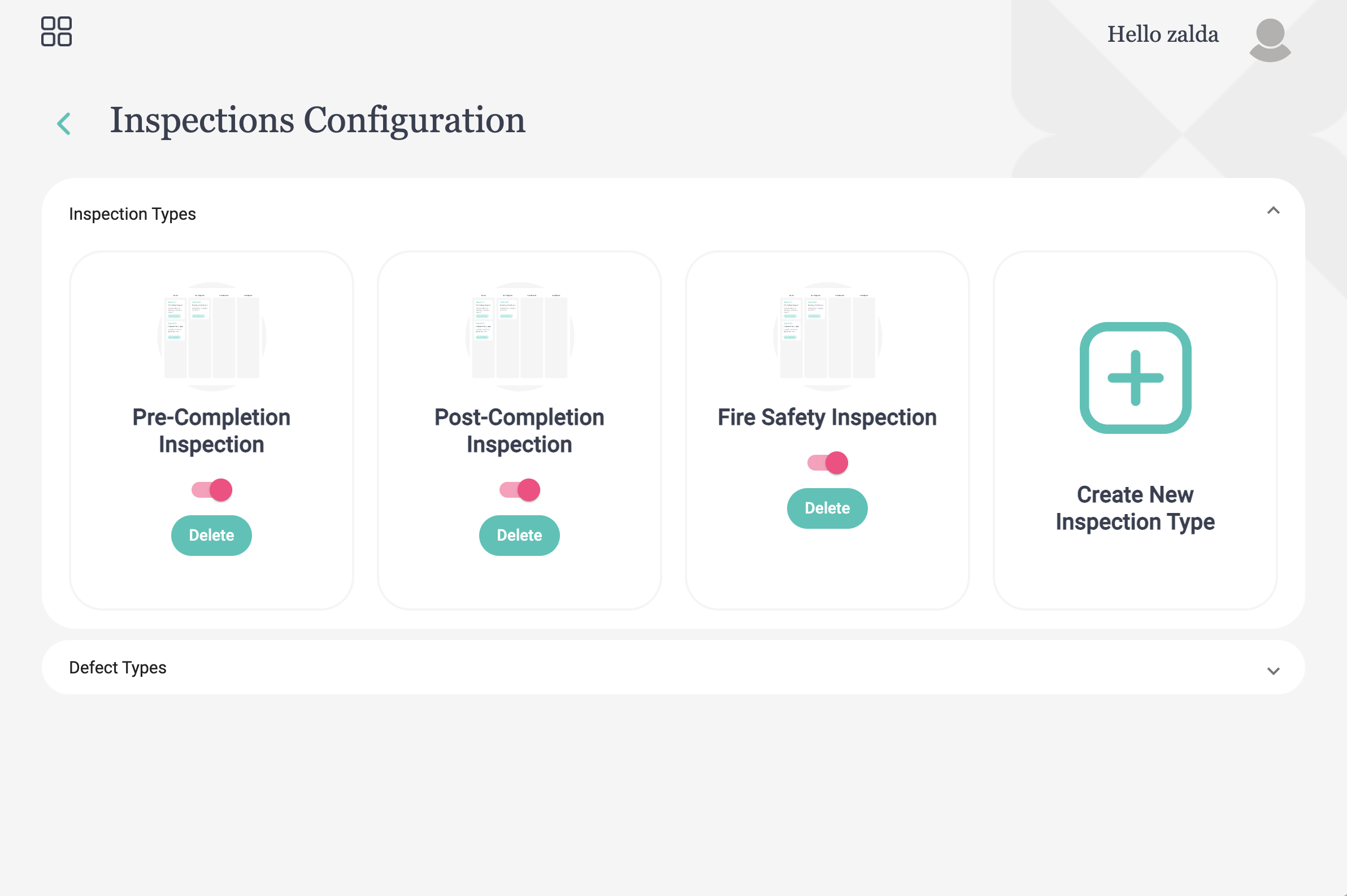
Creating a New Inspection Type
Developers and home builders have the ability to create different inspection types to support defect management and resolution throughout various stages of construction and the defect liability period. These inspection types are available to users, stakeholders and homeowners depending on the Site Configuration settings.
To create a new inspection type, follow these simple steps:
- Select Configuration from the Inspections menu
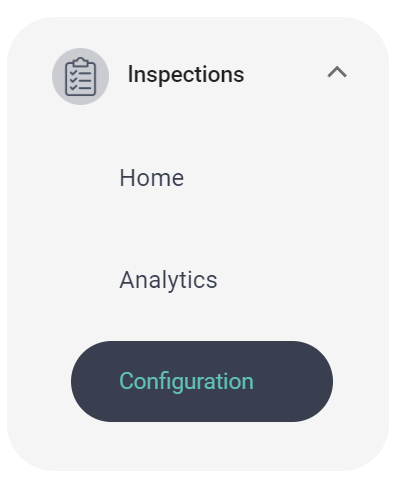
- Expand the 'Inspection Types' card and select 'Create New Inspection Type':
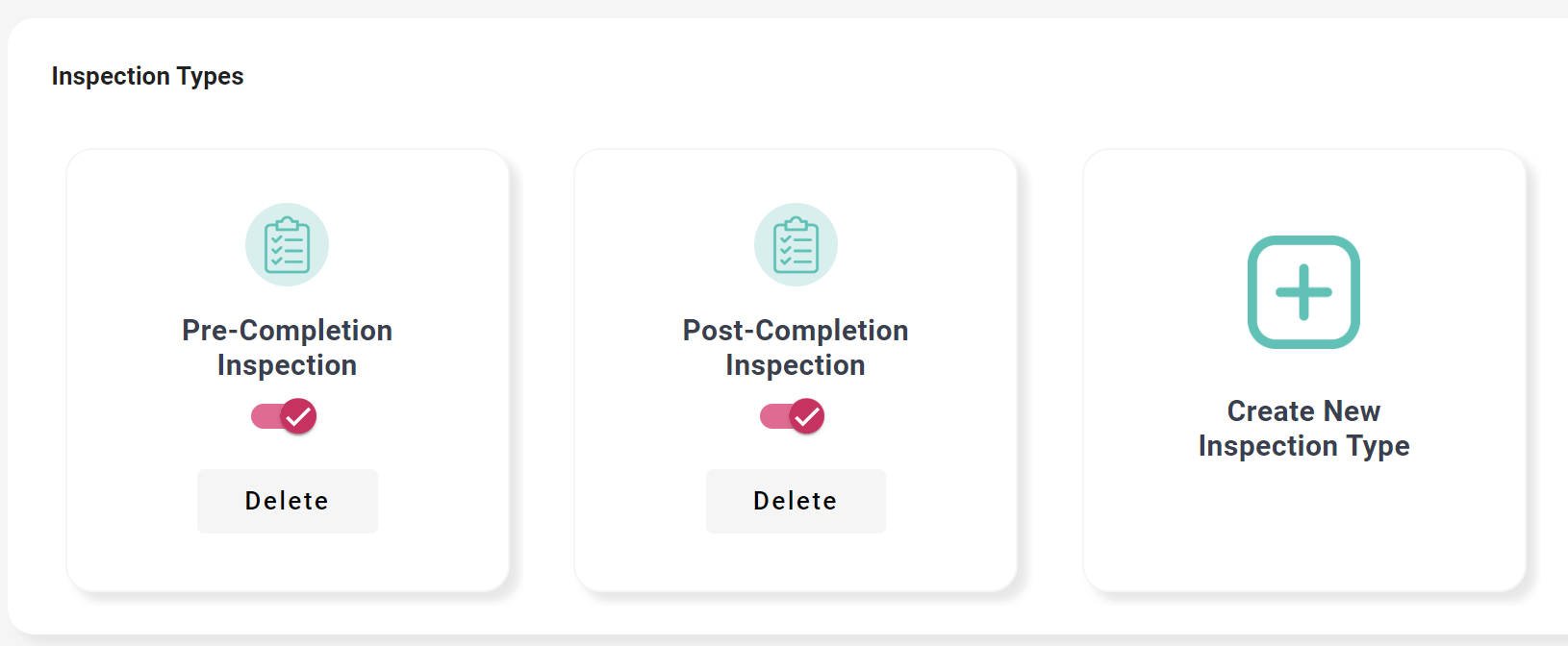
- Enter the name of the Inspection Type name e.g. Fire Safety Inspection and select the 'Save' button.
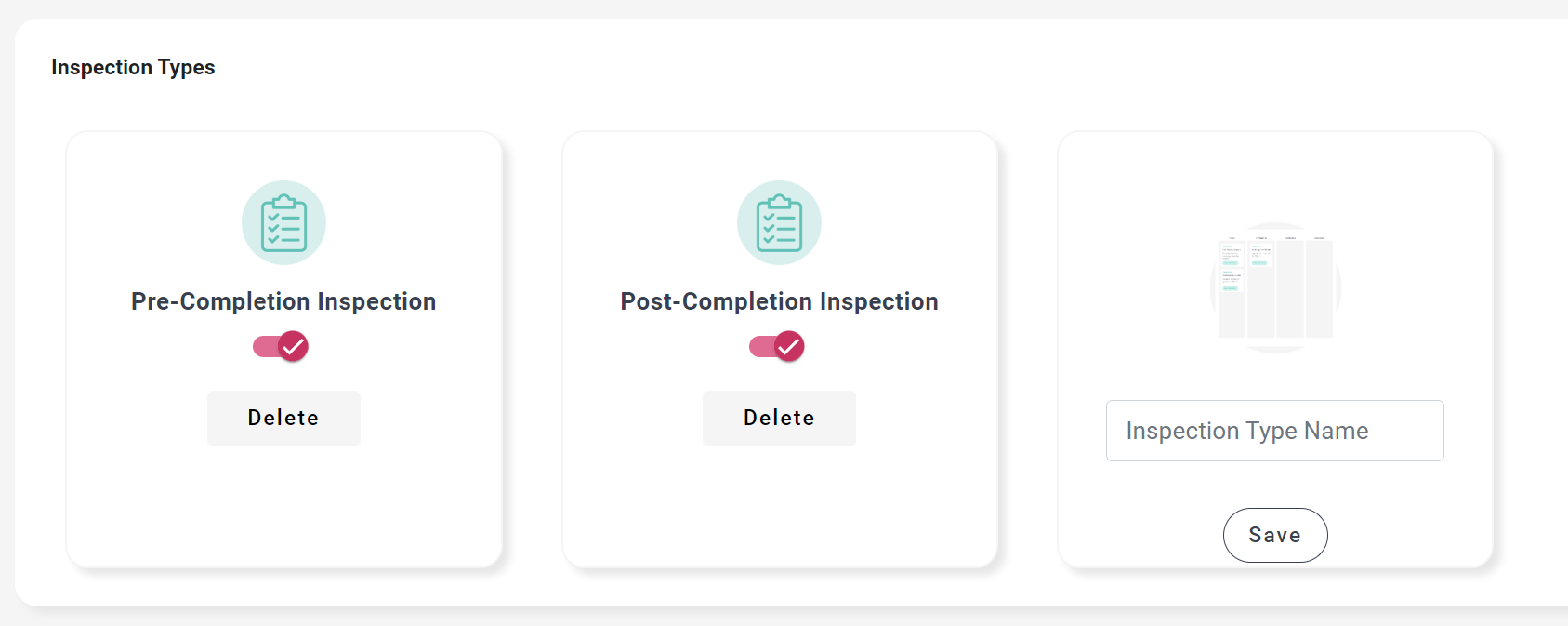
- Your new Inspection Type will be created and you can start performing defects for your new inspection types.
Enable, Disable or Delete an Inspection Type
Existing inspection types can be enabled, disabled or deleted at any time. To manage your existing inspection types, follow the below steps:
Enable/Disable an Inspection Type
- Select Configuration from the Inspections menu
- Expand the 'Inspection Types' card.
- Use the toggle switch
 to enable or disable usage of an inspection type.
Delete an Inspection Type
- To delete an inspection type, select the 'Delete' button.
- Important: Once an inspection type has been deleted, it can not be undone. You will need to create the inspection type again if you accidently delete it.
Was this article helpful?
That’s Great!
Thank you for your feedback
Sorry! We couldn't be helpful
Thank you for your feedback
Feedback sent
We appreciate your effort and will try to fix the article