Guided Home integrates with Procore to synchronise your Inspections, Defects & Snagging items with Procore’s Punch List feature in real time.
Pre-requisites
An active Procore licence.
Your project is set up in Procore.
Your project is set up in Guided Home.
You will need
Your Procore Company ID (found in Procore Company Settings).
Steps
- Login to Guided Web Portal as an administrator
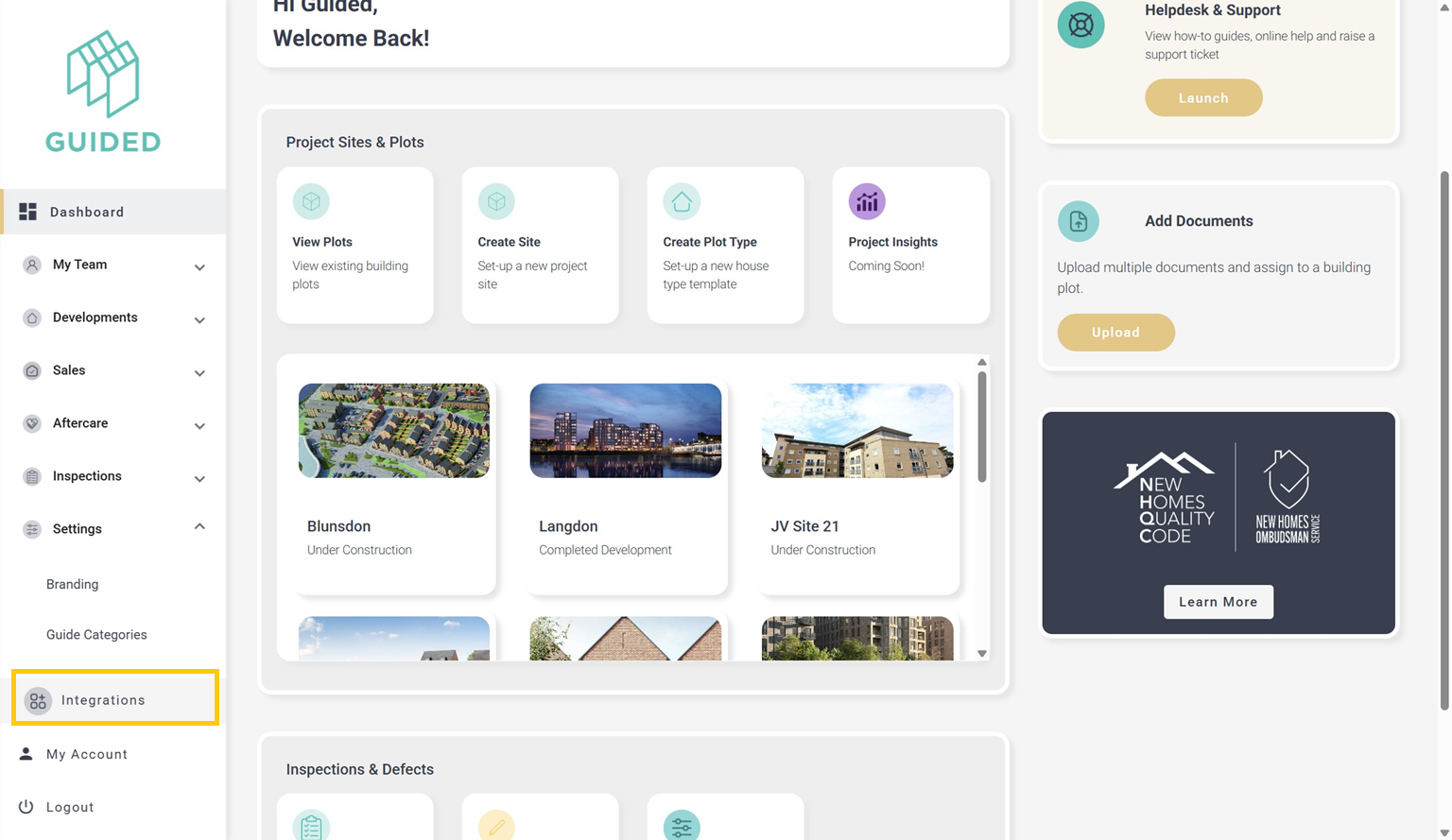
- Select Integrations from the left-hand menu:
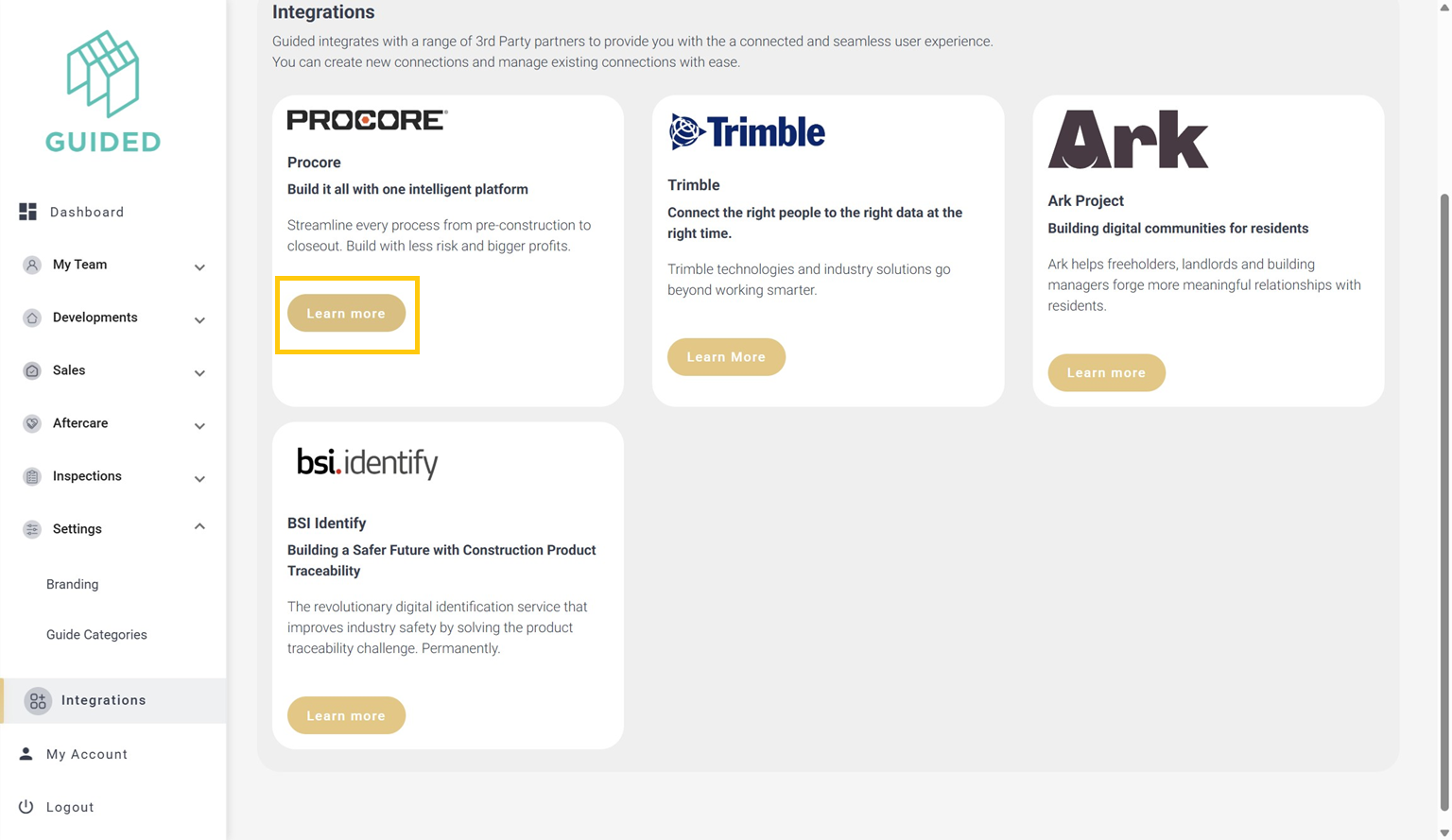
Under the Procore Integrations card, click Learn More.
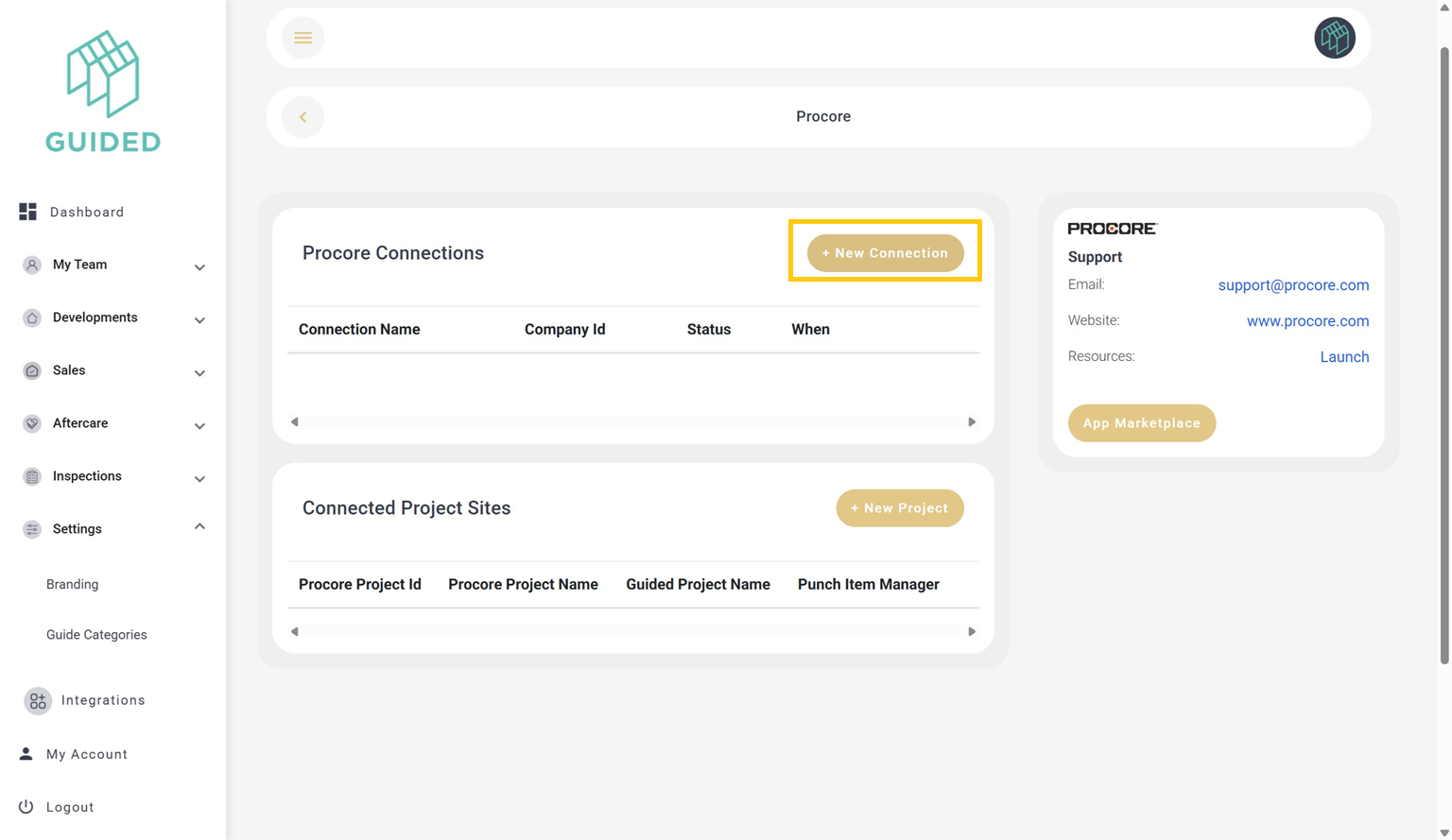
- In the Procore Connections card, click + New Connection button
- Enter the details as follows:
- Connection name e.g. Procore Production
- Company Number - This will be your Procore Company Id
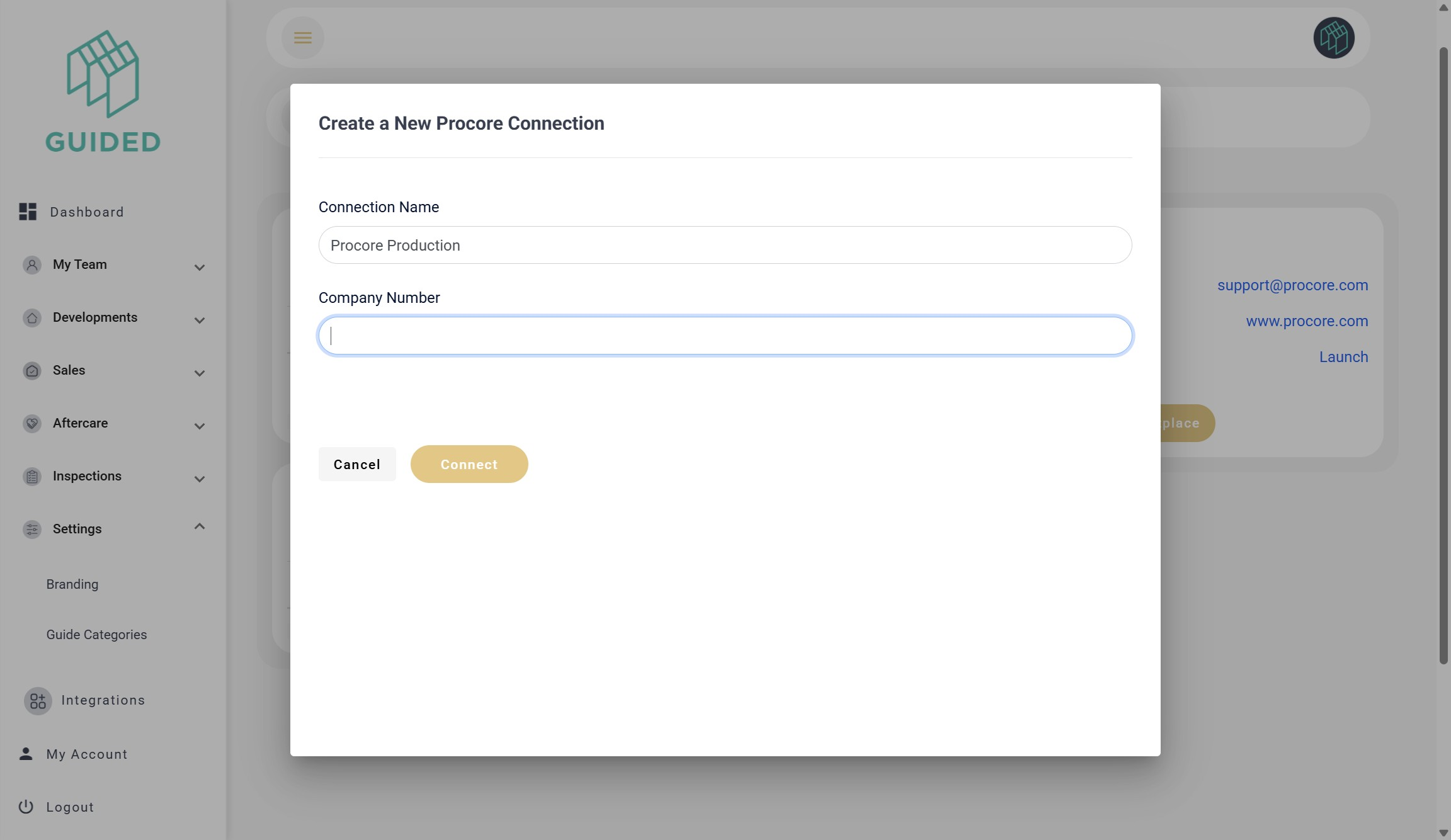
- Select Connect.
You have successfully given Guided permission to access your Procore account.
Connect your Procore Projects to Guided Home Developments
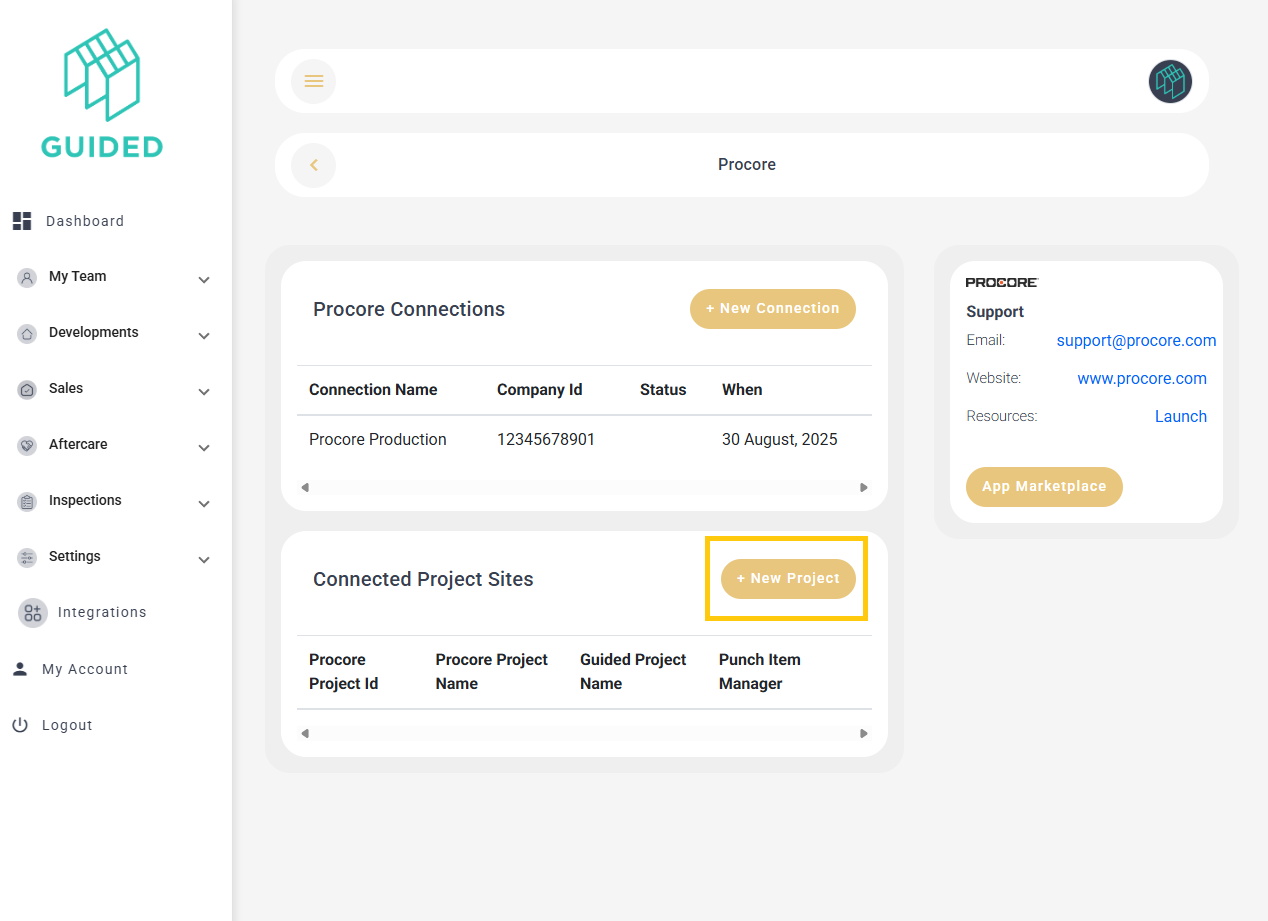
1. From the Procore integrations screen shown below - click on "+New Project"
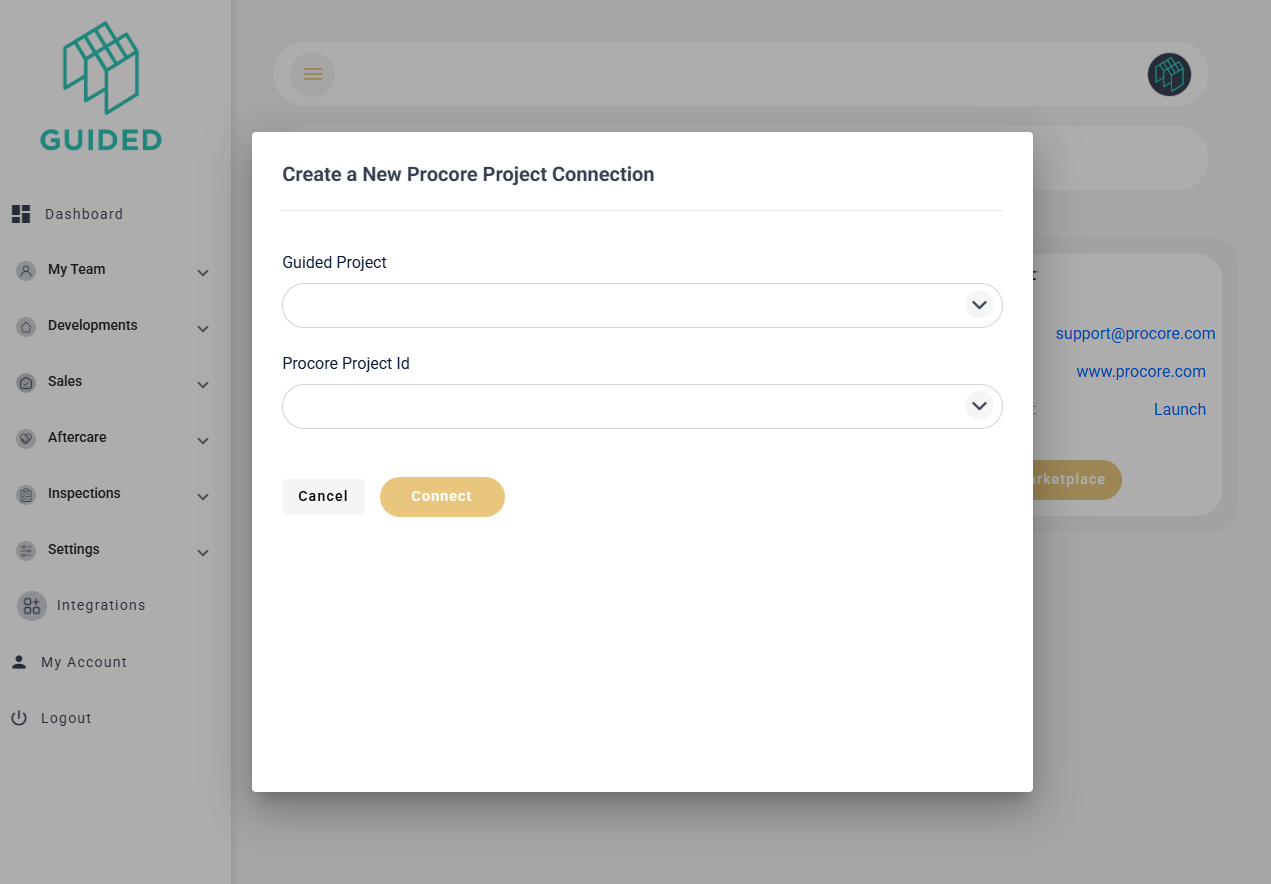
2. Use the dropdowns to map the Procore Project to the correct Guided Home Development, then click Connect.
3. On the next screen, complete the form by adding the relevant Procore Punch List Manager for the project.
Verification (Recommended)
Create a new defect in a Guided Home against a mapped project and plot
Confirm it appears in Procore Punchlist
Was this article helpful?
That’s Great!
Thank you for your feedback
Sorry! We couldn't be helpful
Thank you for your feedback
Feedback sent
We appreciate your effort and will try to fix the article